
The Map of Leonida
Rockstar's official “Visit Leonida” map. Pins are numbered in story order — tap one for its guide. Zoom with the buttons, pinch, or your mouse wheel; drag to move around. Teal pins are done.
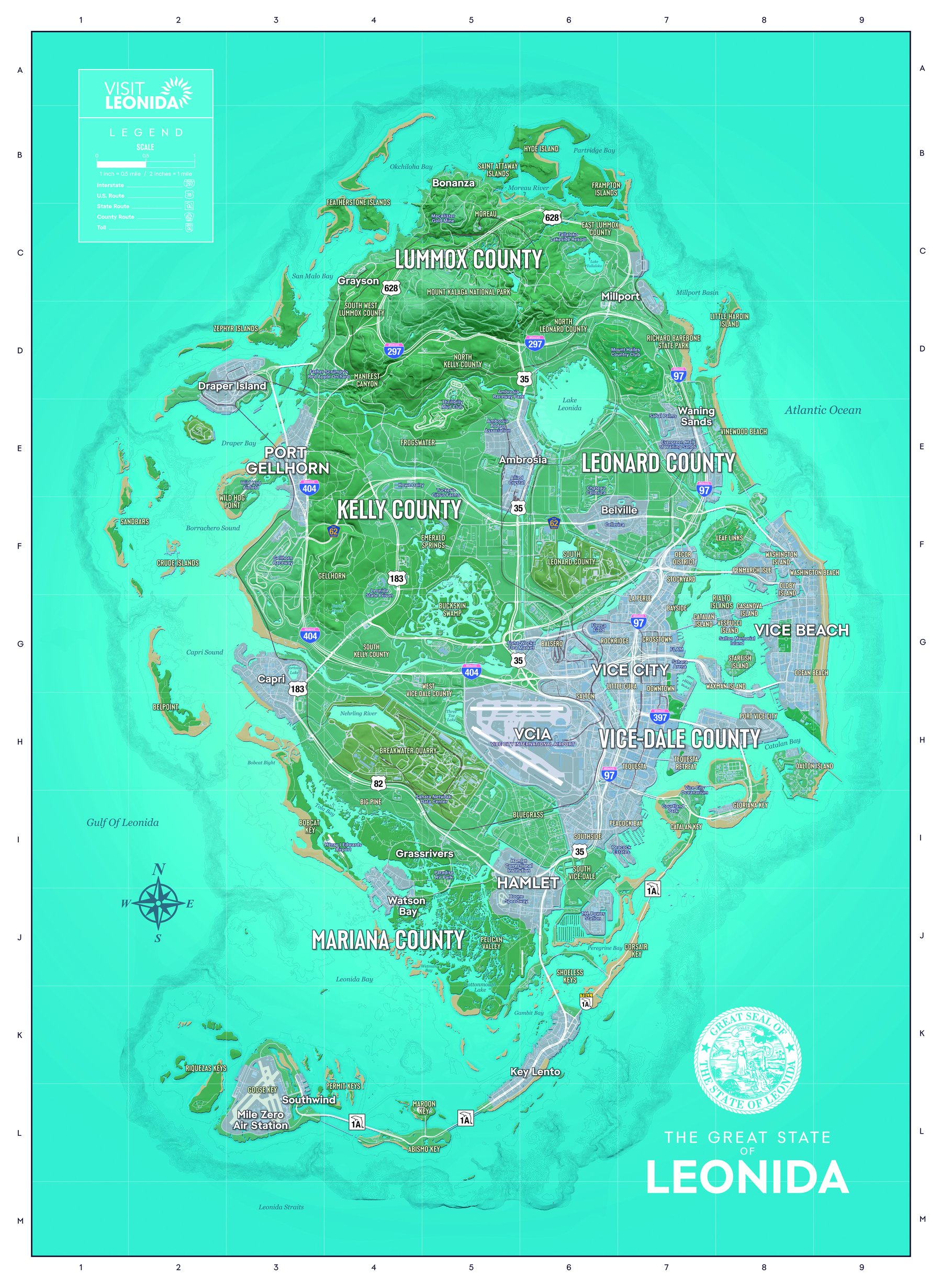
Map © Rockstar Games — the official “Visit Leonida” poster, from rockstargames.com/VI.
Tonight's Run
The next things you can actually do, in story order. Tell the guide where you are:
With “right now” on, anything past your mission is hidden everywhere — lists and map — so nothing late-game can spoil you.
Your Progress
Ticks save on this device automatically and are shared between the map, the lists and these bars.
The Money Run
The best early cash stops, joined up in the order to hit them. Tick them off here or on the Loot list — it's the same checklist.
Watch Videos
Guide videos that play right here on the page. If a maker ever blocks playing away from YouTube, the plain link under each video still works.
Help — how Leonida Lowdown works
The checklist & progress
Every guide has a Done tick. Tick it on the list, inside the guide, or on the map — it's one shared checklist, so every place updates at the same moment, including the progress bars and the map pins (done pins turn teal). Ticks save on this device automatically.
Spoiler tap
Late-game guides are covered by a spoiler tap. Nothing late shows until you tap to reveal it, so you can browse safely.
“What can I do right now?”
On Start Here, pick the mission you're on and switch on Only show what I can do right now. Everything that unlocks later disappears from the lists and the map — spoiler-free. Tonight's Run then shows the next 3–5 things open to you, in story order.
Search & filters
Search by name, area, landmark, weapon or vehicle. Filter by area, or show only Proven or only Reported guides. Each tab (Easter Eggs, Loot Areas, Side Quests, Unlocks) is its own list, always in story order — earliest first.
The maps
The big map on Start Here is Rockstar's official “Visit Leonida” map. Zoom with + / −, pinch, or mouse wheel; drag to move; “Full map” resets. Pins are numbered in story order; tap a pin for a small card with a Done tick and an Open guide button. Every guide also carries a small zoomed cut of the same map around its pin, and a Show on map button that jumps you to the big map centred on its pin.
Videos
Videos play inside the page — on the Watch Videos page and inside the guides they belong to. A plain watch link sits under each one as a backup.
Proven vs Reported
Proven means two or more good sources agree, or there's clear footage. Reported means it comes from a single source or player reports so far — worth trying, not yet certain. Reported items get re-checked on later research runs.
Missable warnings
A red warning means “do this before X” — after that point in the story it's gone. Check missables before starting a chapter finale.
Money Run & Tonight's Run
The Money Run (top of Loot Areas) joins the best nearby cash stops in the order to hit them, with a running total. Tonight's Run (Start Here) is your next 3–5 open, not-done guides in story order.
Updates
The guide is researched and refreshed three times a day: a full run at 7:00 AM, a light check at 1:00 PM (new finds only), and a full run at 7:00 PM. This website copy is rebuilt from the same research as the Leonida Lowdown Space.
Something wrong?
If a guide looks wrong, report it in the Leonida Lowdown guide chat with the guide's title and what looks off — it gets re-checked against sources on the next run.
Accounts
On this website your checklist ticks save on this device automatically — no account needed. Hooking up SmartSoftware Google sign-in so ticks follow you between devices is the next step; see the Account page.
Your Account
On this website copy, there's nothing to sign into yet — and nothing you need to do. Your Done ticks save on this device automatically (in your browser) and are shared between the map, the lists and the progress bars.
The next step is hooking up SmartSoftware Google sign-in, so the same account you use for SmartSoftware carries your checklist between your phone and computer. That hookup happens on the SmartSoftware side and isn't live on this page yet — we won't fake a sign-in button that doesn't really work.
Your progress on this device
Reset clears the ticks saved on this device and restores the checklist to the state it shipped with.